Locode Download and deploy
Q: Why can't deep learning operators choose my model version in low code flow?
A few regular customers may see in existing low-code projects that the "model version" of a deep learning operator is not a valid version number (as shown below); Or, in Select Model Version, some version is not found.

This is due to a recent upgrade of the low-code platform.
In order to provide users with a better model algorithm, we upgraded the model and launched a new framework model represented by the "standard version" and "high precision version", as well as the corresponding SDK package. The new framework model has faster reasoning speed, more stable operation, better recognition effect, and more scenes can be covered, so we strongly recommend users to use the new framework model to replace the previous "ordinary model" and "fast model". In fact, the new user defaults to the new framework model, and the user does not need to do any additional operations.
To make the new framework model accessible to low-code users, we recently upgraded our low-code platform. However, due to the incompatibility and complexity of the framework, we had to remove support for the old models, including the "common model" and the "fast model", in the new version of the low code.
As a result, the very few users who are still deploying the old model with low code may be affected. We're very sorry about that, but there are solutions.
Solution:
Follow the steps below to deploy the common and fast models in low code.
1、Download component
In the low code development platform, you still have the normal configuration to develop your low code projects, including process development, interface development. In process development, if it is temporarily impossible to select the version you need when selecting the version of the deep learning operator (because these versions are old models), you can first select the corresponding new model version (switch between the new and old models, please contact technical support) to complete the development of low code. After the [low code download page] (https://nb-ai.com/lowCodePageDownLoad) to download the components.
2、Download model
Please develop in 2D development -> AI model development, find the corresponding model and download the required version (including ordinary model and fast model version).
3、Download the low code deployment pack for version V3.0
For Nvidia 30 Series graphics cards, the download address is:2D_lowCodeDeployPack_30GPU_V3.0
For Nvidia 10/20 series graphics cards, the download address is:2D_lowCodeDeployPack_10-20GPU_V3.0
4、Importing a deployment package
Copy the downloaded components and models to the corresponding paths of the deployment package and configure them. See detailed configuration instructionsImport configuration file
Q:Low code deployment package running exception, how to find the exception information?
When the low code is running abnormally and the cause of the problem is to start troubleshooting, looking at the low code running error code is a common method.
In the Logs folder in the low-code deployment package, the nonCodeLog.txt file is the log file. Log messages from low code runs report errors in this file. Double-click to open it in a text editor to view it.
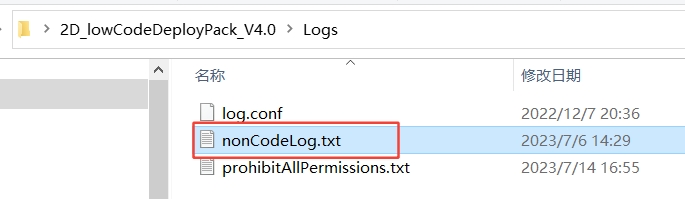
By default, log files only store error level logs.
Q:How does the low-code deployment package adjust the attached camera
The low-code deployment package itself does not have camera parameter adjustment.
Before configuring the camera connection with the low-code deployment package, be sure to use the camera manufacturer's control software, such as Hikon's MVS, to configure the camera parameters, such as IP address, exposure parameters, ISO parameters, etc., to ensure that you can obtain good images in the control software.
Once this is done, disconnect the control software from the camera and configure the connected camera in the "Picture Source Configuration" of the low-code deployment package.
Q:Common error code - error code 50
Look at the log file (see the method above), or look at the low-code console message and find that error code 50 is reported. This is because the low-code program requires License authorization to run (the low-code program itself requires a license, and additional license authorization is required if the deep learning model is included in the process), and the program cannot query the authorization file.
Place the obtained License file license.txt in the root directory of the low-code deployment package, that is, in the same path as nonCode.exe.

For details about how to obtain License.txt, see: How to get License
Q:Common error code - error code 56
Error code 56 is reported in the log file because the low-code program does not have the permission to edit the License.txt file. See How to handle Error code 56

Q: Windows 10 prevents the computer from automatically deleting files
Go to Windows Security Center in Privacy and Security in Desktop Settings
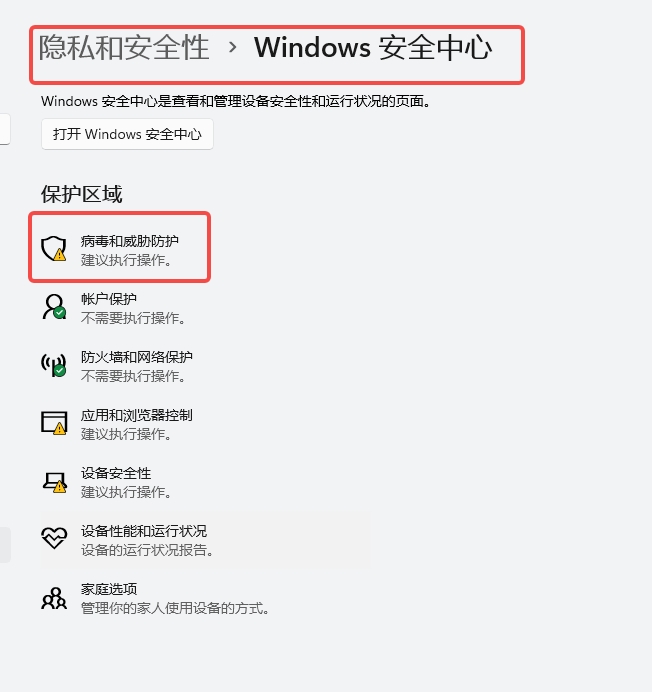
Find "Virus and Threat Protection" in the Windows Security Center, click on it to go to the page, and find "Administrative Settings" under the option "Virus and Virus Protection Settings."
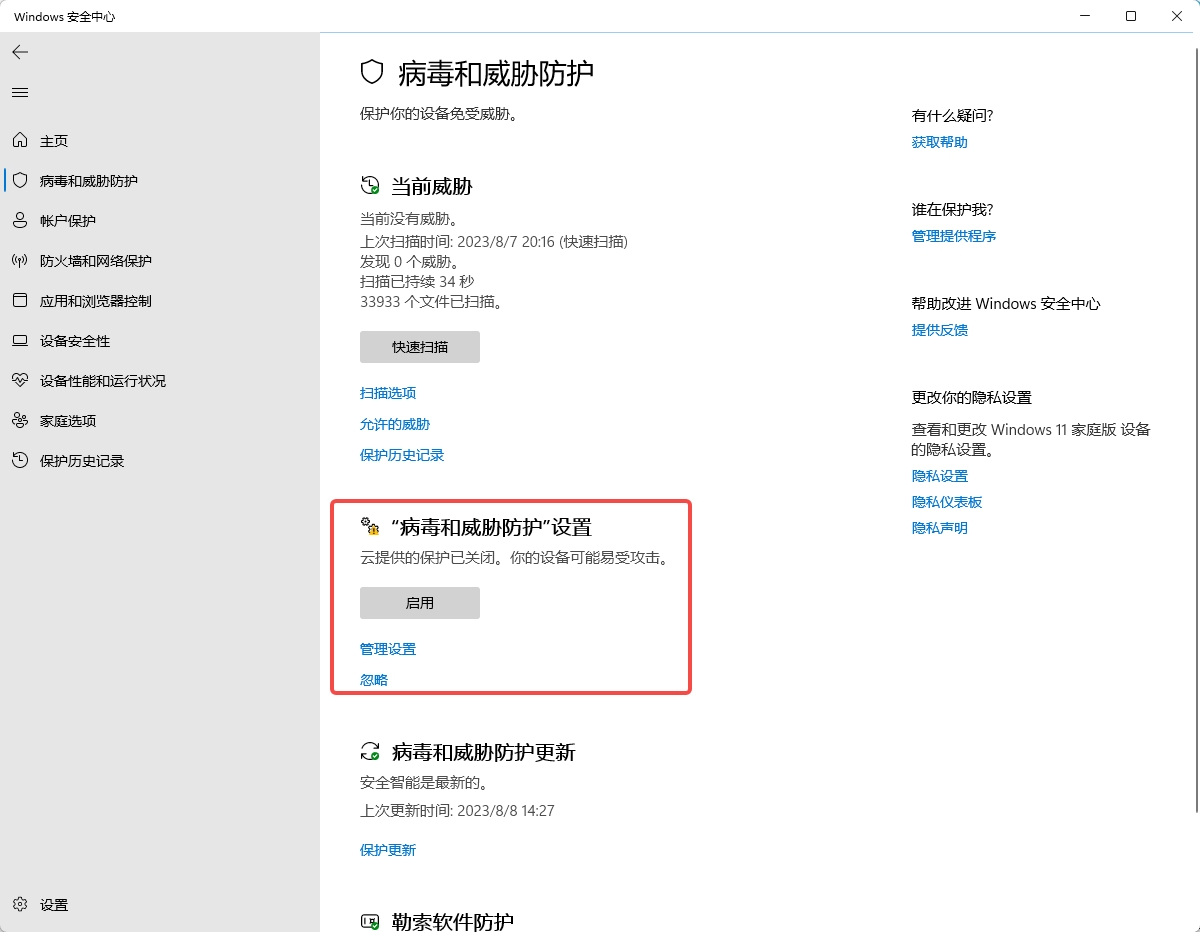
Find "Virus and Threat Protection" in the Windows Security Center, click on it to go to the page, and find "Administrative Settings" under the option "Virus and Virus Protection Settings."
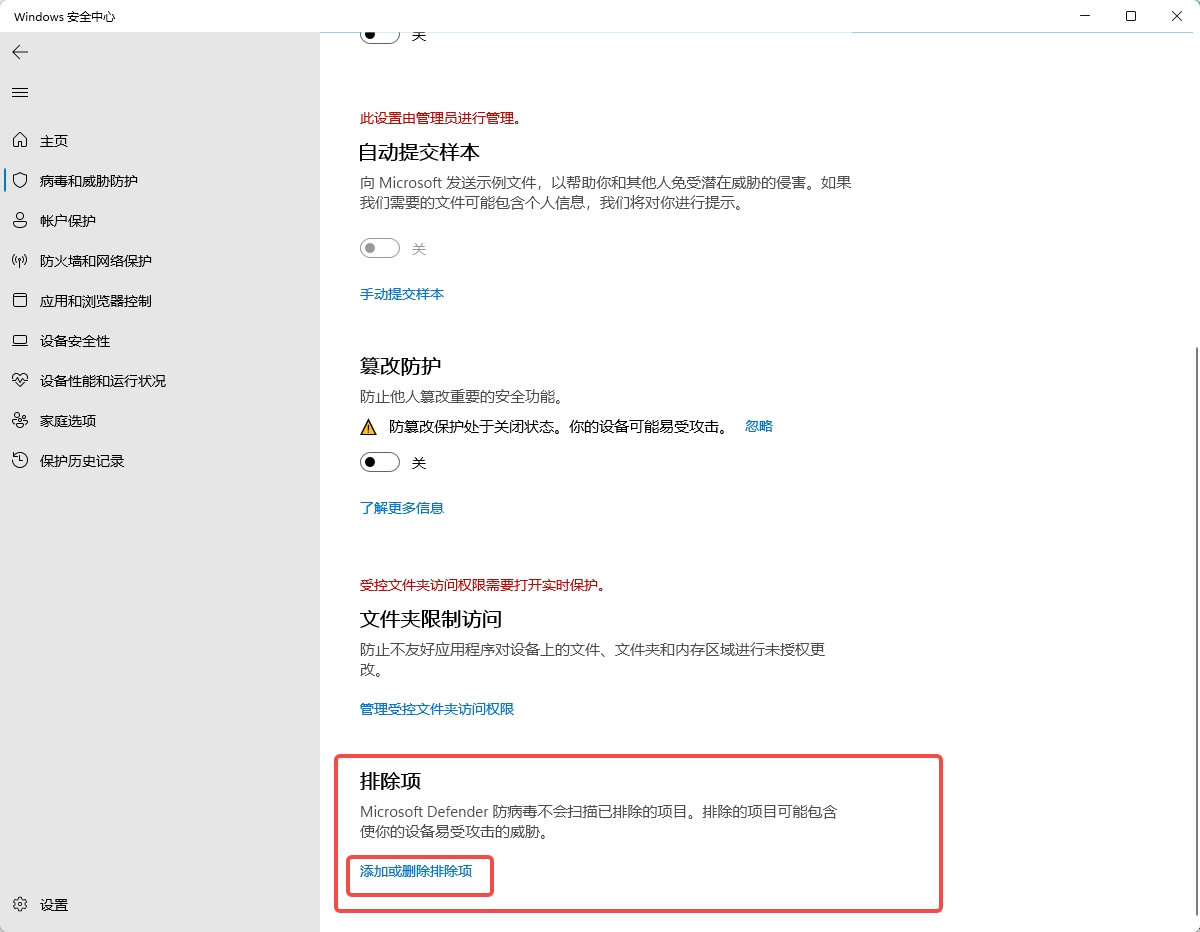
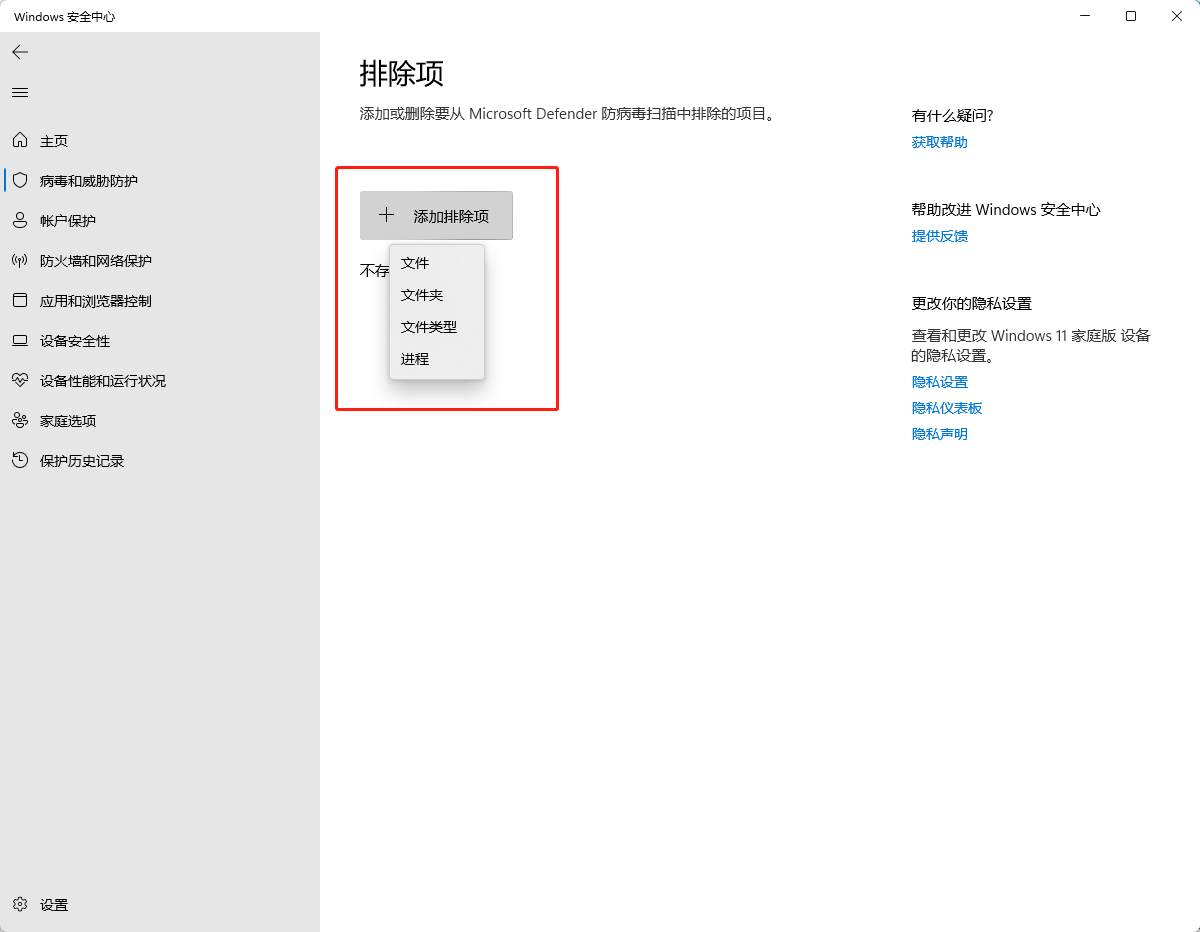
After entering the exclusion page, click "Add Exclusion". You can select a file or folder to protect files (folders) in a specified location, or select a file type to protect all files of a certain type.